Contents
- Supported browsers
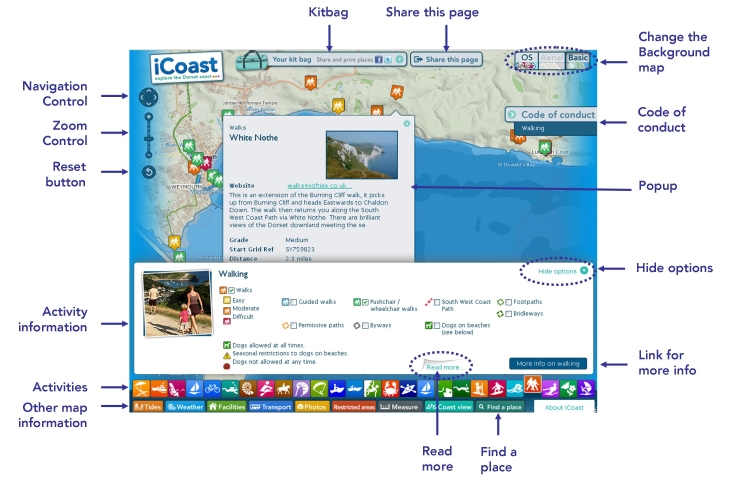
- The iCoast map screen
- Navigating the map
- Viewing activity information
- Viewing codes of conduct
- Using the kitbag
- Share your map
- Viewing tide times and tidal current information
- Viewing weather related information (weather, web cams, wave buoys etc)
- Viewing facilities (visitor centres, toilets, car parks etc)
- Viewing transport information
- Viewing photos
- Viewing information about restricted access and sensitive areas
- Viewing panoramic photographs of the Dorset coast from the sea - Coast view
- Measuring a distance
- Changing the background map
- Resetting the map
Supported browsers
iCoast has been tested in all major browsers:
- Google Chrome - Versions 10 & 11
- Mozilla Firefox - Versions 3.6 & 4
- Microsoft Internet Explorer - Versions 7, 8 & 9. Version 8 or higher recommended.
- Apple Safari 5
Modern browsers will give a better user experience and are available for free download:
A mobile version of iCoast can be found at m.icoast.co.uk
The iCoast map screen
Navigating the map
Zooming in
You can zoom in on an area by doing any of the following:
- Use the
 button on the zoom control (top left)
 - Use the slider on the zoom control (top left)
- Use your mouse scroll wheel
- Double-clicking on the map
- Holding the shift key, pressing the left mouse button and dragging a box
Finding a place
If you know the name or postcode of where you want to zoom to:
- Click on the
 button.
 - Enter the name in the "find a place" box
- Press enter or click on the
 icon
icon - All places with this name are shown with blue markers and the map zooms to them. To remove them press "Clear". You can remove the "find a place" box using the X icon in the top right corner.
Zooming out
To zoom out you can do any of the following:
- Use the
 button on the zoom control (top left)
 - Use the slider on the zoom control (top left)
- Use your mouse scroll wheel
- Press shift and double-click on the map
Panning/ moving the map
To move (pan) the map do any of the following:
- Hold the left mouse button down and drag the map
- Click on the arrows on the navigation control (top left)

Viewing activity information
Choose an activity
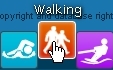
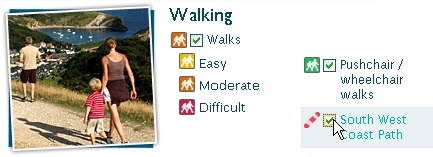
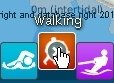
Choose the activity you are interested in. As you pass the mouse over the activity icons they move upwards and the activity name is shown.
Add layers
You can add layers of information to the map, such as guided walks or pushchair/wheelchair walk on the example screen above, by clicking in the small box in front of the layer description so that the tick appears. This can be from the same or another activity.
Removing layers from the map
To remove layers from the map click in the small box before the layer description so the tick disappears.
Finding more information about a location or provider
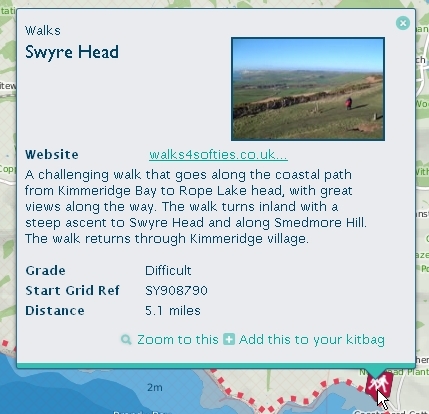
To find out more information about a specific location or provider you can click on the symbols that are displayed on the map. A popup window is displayed. If there is a photograph you can click on it to see a larger version.
More activity information
You can view further information about an activity by clicking on the links:
- At the bottom of the activity information panel, or
- In the Code of conduct panel.

Closing an activity group
To close a layer click on the activity icon. This will remove all of it's layers from the map.
Shared locations
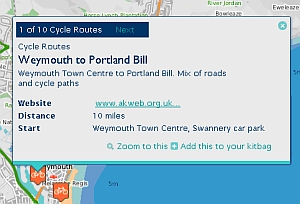
A small number of layers behave slightly differently. Where several activities, such as cycle routes start at the same location, or providers are at the same approximate place, the information popup is slightly different in appearance. It tells you how many are at that location and you can move between them with the Prev and Next controls.
Code of conduct
When you choose an activity you can access Code of conduct information. This contains details of how to enjoy the activity in a responsible manner which considers the environment and other coast users.
Access Codes of conduct from the links that appear on the right hand side of your screen.
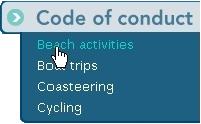
You can reduce the amount of screen space they occupy by clicking on the icon.
You can expand them by clicking on the icon.

Using the kitbag
The kitbag allows you to plan your day then save your ideas and share them with friends and family.
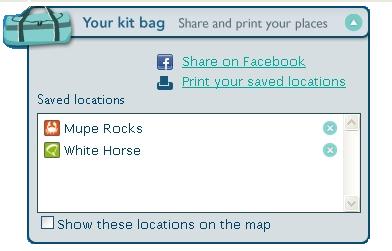
To put items in your kitbag
- Click on an activity symbol on the map.
- In the popup window click on Add this to your kitbag
To view your kitbag
- You can view the contents of your kitbag at any time by clicking on the
 icon.
icon. - The kitbag can be "rolled up" by clicking again on the
 icon
icon
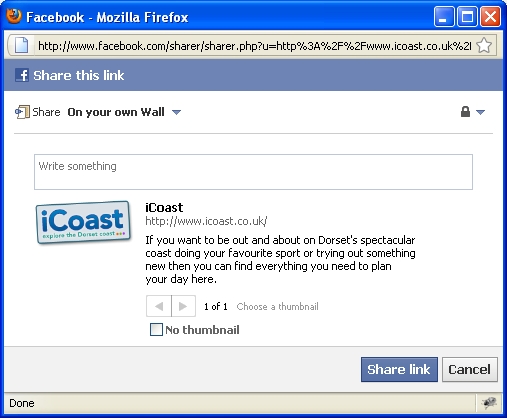
To Share your kitbag on Facebook
- Put some locations / activities in your kitbag.
- On the kitbag, click on the Share on Facebook link.
- A new window will open for you to log into Facebook.
- Choose how you want to post it, add some text and press Share link
- Your kitbag is then posted. If your friends click on the iCoast logo, iCoast will open and show your kitbag contents on the map.
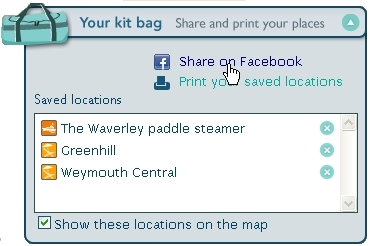
To print your kitbag
- Click on the Print your saved locations link
- The contents of your kitbag are displayed in a new browser window. This can be printed using the standard browser function.
To show your kitbag locations on the map
- Tick the box labelled Show these locations on the map
To delete items from your kitbag
- To remove an item from your kitbag, click on the delete icon
 next to it
Share your map
You can easily share your view of iCoast with others. The view can include activities and the other types of information - tides, weather, facilities, transport etc. iCoast lets you get a link which you can share by e-mail or put on a website.
To share your map
- Create the required view.
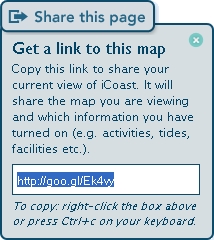
- Click on the Share this page icon

- Highlight the displayed link and copy it to your clipboard by right-clicking in the box with your mouse and picking Copy from the popup menu or pressing Ctrl+c on your keyboard.
- You can paste the link into an e-mail, post, tweet or build it into a web page.
Viewing tide times and tidal current information
iCoast contains two types of tidal information - tide times and tidal currents. You can view this information for the next seven days
To check tide times
Click on the Tides icon 
Locations that tide times are available for are displayed on the map with the  symbol.
You can click on one of these symbols. A popup window appears. This contains general information about the character of the tide times at this location.
You can click on the Show Tide Times link and the tide times and graph are shown.
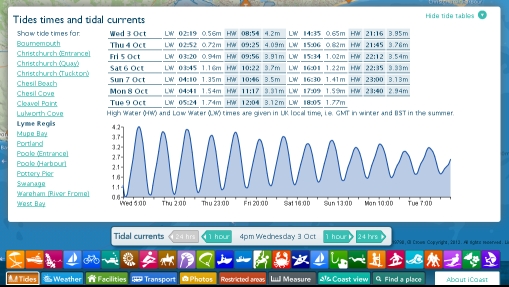
You can also choose a place name from the list of place names to the left of the tide times.
You can get tide heights and times by moving the cursor over the graph.
To view tidal currents
Click on the Tides icon
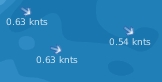
The tidal current control is displayed at the bottom of the map and tidal current arrows are displayed on the map. You will need to "hide" the tide times panel to see the map. You may need to zoom in to see the tidal current arrows more clearly.
When you are zoomed in you will see the speed of the current displayed by them (in knots).
You can use the control to look at the currents over the next seven days moving with the forward and backward 1 hour or 24 hours buttons.

To remove tidal information from the map
- Click again on the Tides icon.
Viewing weather related information (weather, web cams, wave buoys etc)
iCoast provides access to a wealth of weather-related information to help you plan your activity. These are all accessed from the Weather icon  . You can add any of the below layers to the map:
- General weather forecasts for the towns along the Dorset coast - from the Met Office
- Webcams
- Up to the minute weather measurements
- Wave buoys - live wave height, wave period, wave direction and sea temperature data
After the Weather icon has been clicked, watersports weather forecasts from Windguru are given in the lower part of the iCoast screen. Click on the name of the location you are interested in.
To remove weather information from the map
- Click again on the weather icon.
Viewing facilities (visitor centres, toilets, car parks etc)
iCoast gives you easy access to a broad range of information to help you plan your visit to the Dorset Coast. These are all accessed from the Facilities icon 
- Caravan and camping sites
- Public Conveniences
- Viewpoints
- Visitor Centres
- Youth Hostels
- Tourist Information Centres
To remove facilities information from the map
- Click again on the facilities icon.
Viewing transport information
With iCoast you can find out about the transport options available to you. Use the transport icon  to get to the information you need.
- Bus routes - note summer-only routes are shown in blue.
- Bus stops
- Railway stations
- Water taxis and local ferries
- Car Parks
- Cycle Network routes (green routes are traffic-free)
- Public rights of way (footpaths, bridleways, permissive paths and byways)
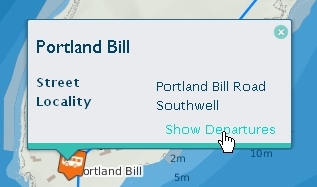
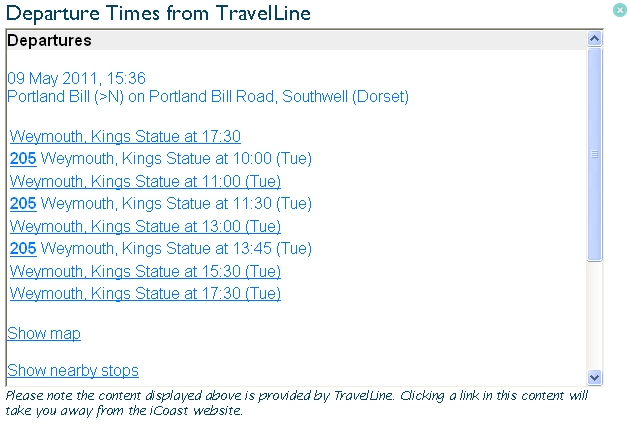
Viewing bus departure times
After adding bus stops to the map, you may need to zoom in. You can access departure times from the popup. Click on the Show departures link.
To remove transport information from the map
- Click again on the transport icon.
Viewing photos
iCoast includes lots of photographs. In addition to those that appear in activity popups, you can access more from the map. These include:
- Views along the coast
- Photographs of the wealth of sealife found below the waves. These are from Dorset Seasearch
- Images of the seabed bathymetry (water depth) showing remarkable rock structures and ship wrecks on the sea floor. These are from the DORIS (DORset Integrated Seabed survey) project.
To view photos on the map
- Use the photos icon
 to display small images on the map.
 - Click on one to see the full size image.
To remove photos from the map
- Click again on the photos icon.
Viewing information about restricted access and sensitive areas
iCoast includes a map layer of restricted access and sensitive areas. These include military firing ranges, areas where craft are prohibited from entry and no anchor areas.
To view restricted access and sensitive areas on the map
- Choose the restricted areas icon
 .
. - To get more information, click on the
 icon displayed near the centre of each area.
To remove restricted access and sensitive areas from the map
- Click again on the restricted areas icon.
Viewing panoramic photographs of the Dorset coast from the sea - Coast view
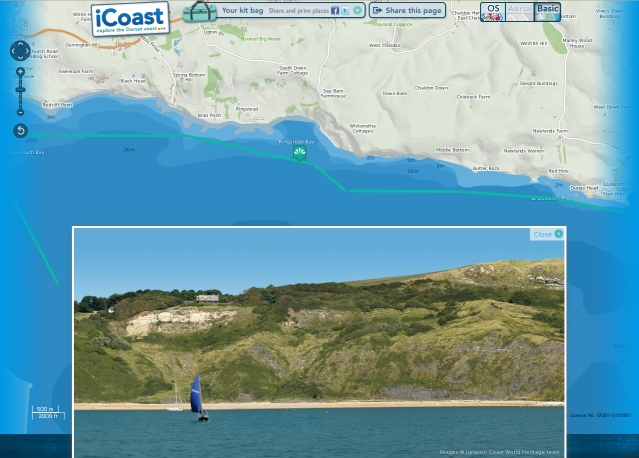
Coast view is similar in concept to Street View in Google Maps. Here, you can explore the Dorset coast with sea-level photographs taken from a boat rather than street-level imagery taken from a car.
To view the sea-level photographs- Select the Coast view icon
 .
. - The map shows the Coast view map marker
 and the green line where photographs are taken from. In the lower part of the browser window the photograph of the coast from near to this point is shown.
 - You can slide the photo left or right to move along the coast until the end of a photograph is reached. At this point an arrow head is displayed on the photograph, click on it to move to the next one.
- You can also drag the map marker to another green line to explore further! It is the point of the marker that should be positioned on the line.

To remove the sea-level photographs
- Click again on the Coast view icon.
Measuring a distance
iCoast lets you measure distances on the map.
- Select the measure icon

- To start measuring, click on the map. Then keep clicking to mark out a route to measure. As you draw your route the total length in kilometres is shown next to the measure icon.
- To stop measuring, double-click on the map at the end of your line.
- Click the measure tool to de-activate it when you're finished.
Changing the background map
iCoast provides a choice of three background maps:
- Ordnance Survey maps at a range of scales.
- Aerial photography. Note you need to be zoomed in for this option to be available.
- A basic outline map.
To change the background map simply select the option you want.

Resetting the map
You can easily reset the map to the way it looked when you entered iCoast by using the Reset button